Step
1: Log into your FastDirect parent account
|
| Step
2: Once
logged on, click the 'View/Edit Parent Information' button that appears
at the
top of your 'home' screen. |
Step
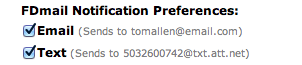
3: On your parent form you will see a section under each
'Parent Guardian' section that resembles the example below. Please note
that both parent/guardian #1 and #2 have these auto-notification
options.
|
|
Step 4: Choose
the type of auto-notification:
EMAIL - If you have an
e-mail address listed in your parent form and would like to receive
auto-notifications by e-mail, check the e-mail box.
TEXT - If you have a cell
phone number listed in your parent form and
would like to receive auto-notifications by text, you will first need
to check mark the option for 'I authorize...'. Once that has been
checked, you can now check mark the auto-text option.
BOTH - You may check both
options, if prior set-up is completed.
|
Step 5: After you have
check marked your selections, make sure to go below your parent form
and click the yellow 'Save Changes' button.
|
Step
6: Wait to receive instant, auto-notifications of all
FDmail messages!
|
| NOTE:
If your school has not allowed the use of SMS Text notifications, then
this option will be grayed out |